Annoyed by Inline Predictive Text Suggestions? Here’s How to Turn Them Off

Estonia, Tallinn, July 11, 2020. Apple Macbook pro 15 Retina on table

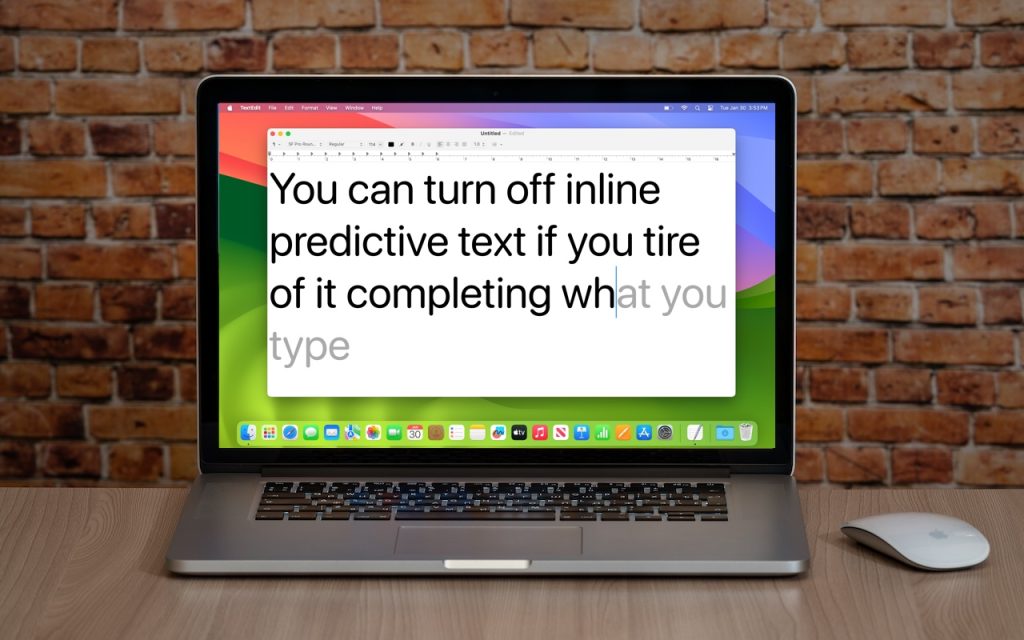
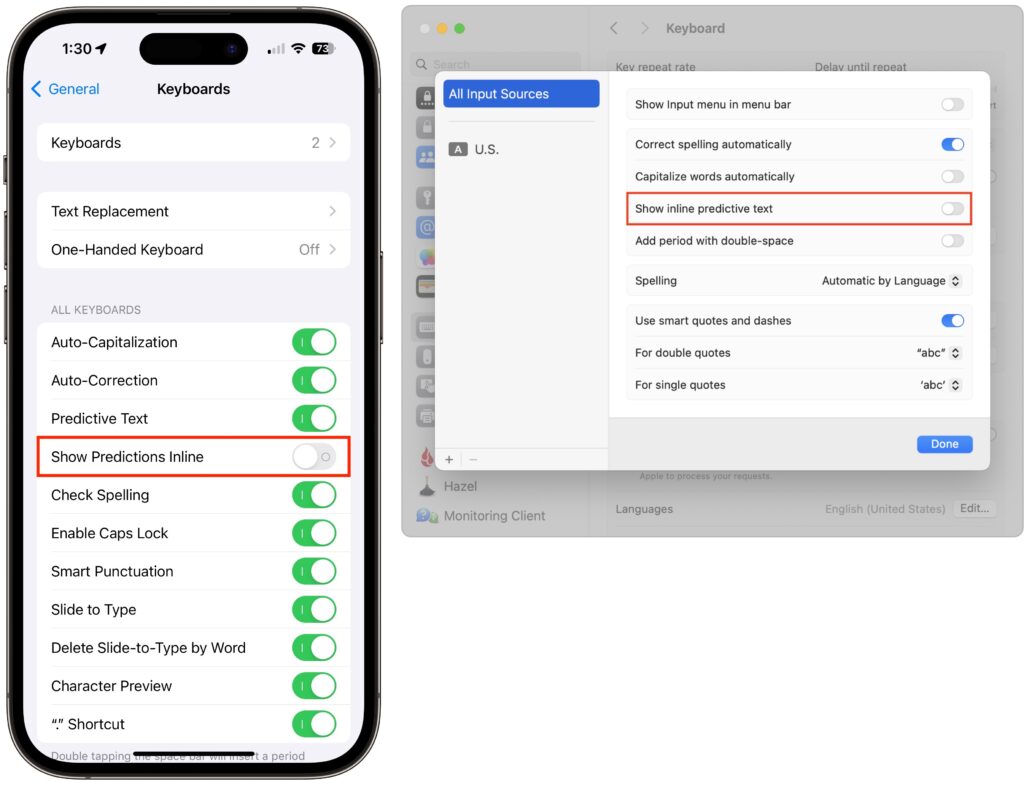
In a slight nod to the hype surrounding generative AI, Apple added inline text prediction capabilities to the iPhone, iPad, and Mac. They can be helpful, particularly on the iPhone and iPad, where it’s often much easier to tap the Space bar than to finish typing a word or sentence. But that’s less true on the Mac, where a fast typist can be slowed down or derailed by the suggestions, and some people dislike having an AI finish their thoughts. The feature is easily turned off. On the iPhone and iPad running at least iOS/iPadOS 17.2, go to Settings > General > Keyboard and switch off Show Predictions Inline. (Leave Predictive Text on to continue to get suggestions above the keyboard.) On the Mac running macOS 14.2 Sonoma or later, open System Settings > Keyboard, click Edit under the Text Input header, turn off “Show inline predictive text,” and click Done.
(Featured image based on an original by iStock.com/Armastas)


Social Media: If you’re not a fan of the new inline text predictions on your iPhone, iPad, or Mac, you can easily turn them off and get back to typing only the words you want to appear.
More Insights

Make Apple Devices Easier for Family to Access with Secondary Biometrics
Tech Tip

Make Apple Devices Easier for Family to Access with Secondary Biometrics

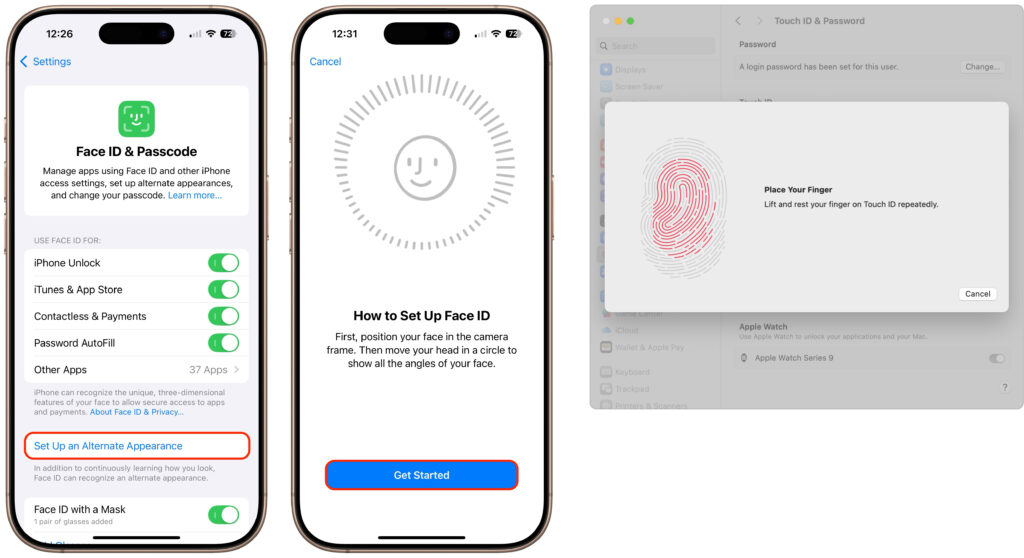
It’s only safe to share your iPhone, iPad, and Mac passcodes and passwords with people you trust completely, which typically includes family members whom you would trust with your healthcare and bank accounts. If those people also use your devices regularly, you can simplify their access by adding their fingerprint to Touch ID or their […]

Read More »
Why Passkeys Are Better than Passwords (And How to Use Them)
Tech Article

Why Passkeys Are Better than Passwords (And How to Use Them)

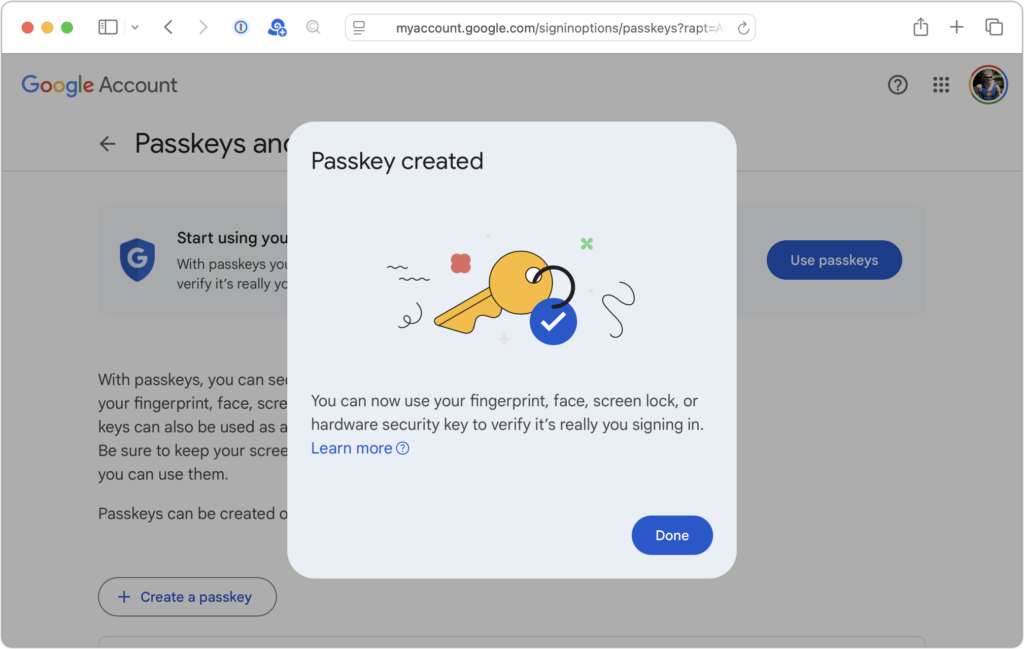
No one likes passwords. Users find managing them annoying, and website managers worry about login credentials being stolen in a data breach. The industry has developed a better solution: passkeys. Passwords versus Passkeys Traditional multi-factor authentication involves three methods of authentication, at least two of which are required for protection. They include something you know […]

Read More »
Beware Domain Name Renewal Phishing Attacks
Tech Tip

Beware Domain Name Renewal Phishing Attacks

Most phishing attacks are easy to identify, but we’ve just seen one that’s more likely to evade detection. Those who own personal or business Internet domain names—to personalize their email or provide an online presence for their website—may receive fake messages claiming that a domain has been deactivated due to a payment issue. Because scammers […]

Read More »
Consider Business Cyber Insurance
Tech Article

Consider Business Cyber Insurance

When discussing digital security, we typically focus on preventive measures, such as using strong passwords with a password manager, enabling multi-factor authentication, keeping systems up to date, maintaining regular backups, and training employees to recognize potential security threats. While these practices are essential, they don’t guarantee complete protection. No one is immune to online attacks—the […]

Read More »
Apple Silicon Macs Can’t Boot from the DFU Port
Tech Tip

Apple Silicon Macs Can’t Boot from the DFU Port

Booting from an external SSD (hard disks are too slow) provides a convenient way to test specific versions of macOS or troubleshoot problems with your Mac’s internal storage. However, a little-known gotcha has caused untold hair loss among those trying to boot from an external drive. Macs with Apple silicon cannot start up from external […]

Read More »
Tech Article

Use AirPlay to Mirror or Extend Your Mac’s Display

Apple’s AirPlay is one of those low-level technologies that’s more capable than many people realize. In addition to allowing you to stream video and audio from an iPhone, iPad, or Mac to an Apple TV connected to a large-screen TV, AirPlay also enables you to use that TV as an external Mac display, either mirroring […]

Read More »

If you are here and not sure how to proceed, please call us at 626-286-2350, and we would be happy to help you find a solution to your needs.