
Use StandBy to Make Your iPhone into a Clock, Photo Frame, and More

iOS 17 brings a new mode for the iPhone: StandBy. All you have to do is connect your iPhone to a charger wirelessly or with a cable, position it on its side in landscape orientation, and press the side button to lock the screen. Standby works best with a MagSafe charging stand. Swipe left or right to switch between three screens: widgets, photos, and clocks. Swipe up and down to move between widgets, photo collections, and clock styles. On the widget screen, touch and hold to add and remove widgets, and on the photo screen, to choose which collections and albums to display. You can choose how long the display stays active in Settings > StandBy > Display. By default, it will stay on all the time on iPhone models with an Always-On display; a tap or nudge will wake it on other iPhone models. Finally, StandBy remembers your preferred view in different locations, so it can be a clock in the bedroom, a photo frame in the kitchen, and a clock at the office.
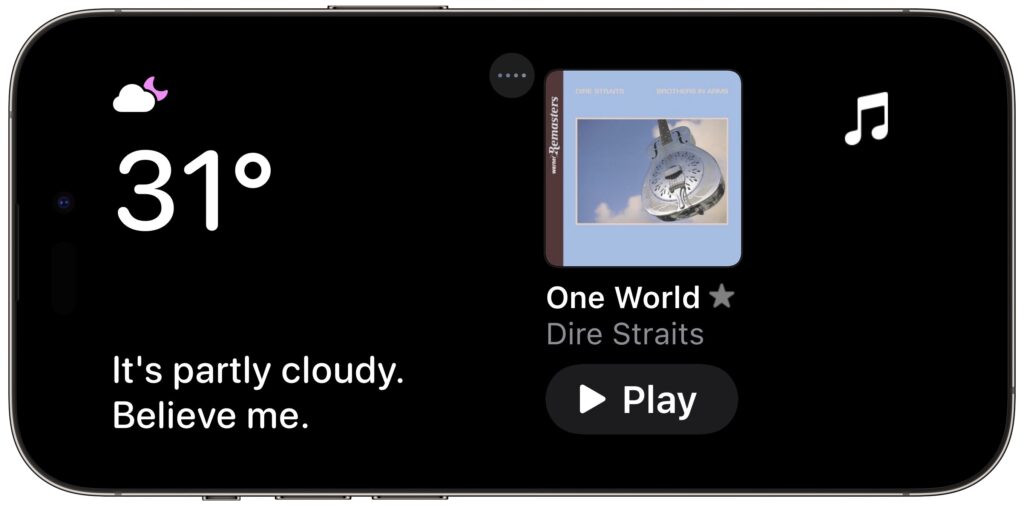
(Featured image by Apple)


Social Media: The new Standby mode turns your iPhone into a digital picture frame, clock, or customizable widget display—and it remembers which approach you prefer in different locations.
More Insights

Make Apple Devices Easier for Family to Access with Secondary Biometrics
Tech Tip

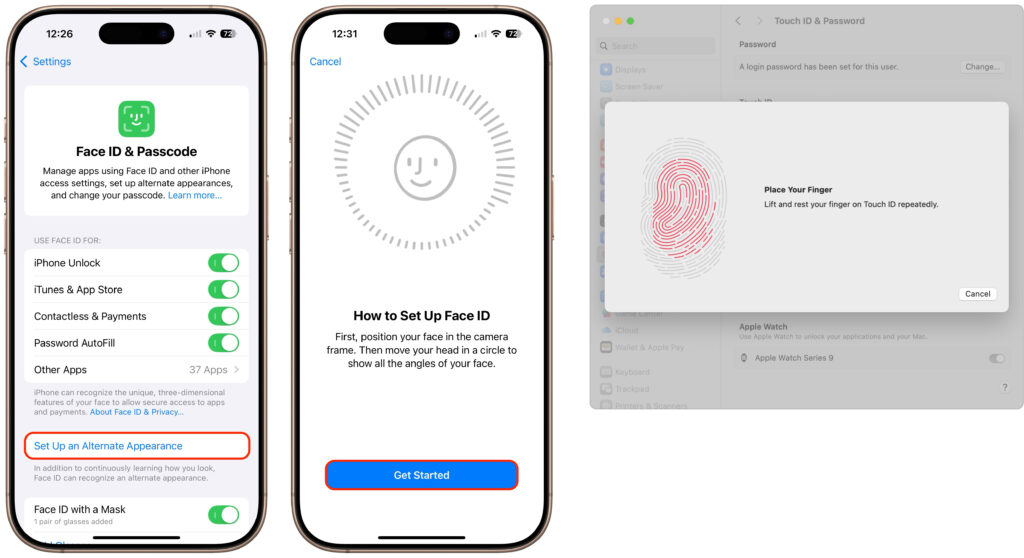
Make Apple Devices Easier for Family to Access with Secondary Biometrics

It’s only safe to share your iPhone, iPad, and Mac passcodes and passwords with people you trust completely, which typically includes family members whom you would trust with your healthcare and bank accounts. If those people also use your devices regularly, you can simplify their access by adding their fingerprint to Touch ID or their […]

Read More »
Why Passkeys Are Better than Passwords (And How to Use Them)
Tech Article

Why Passkeys Are Better than Passwords (And How to Use Them)

No one likes passwords. Users find managing them annoying, and website managers worry about login credentials being stolen in a data breach. The industry has developed a better solution: passkeys. Passwords versus Passkeys Traditional multi-factor authentication involves three methods of authentication, at least two of which are required for protection. They include something you know […]

Read More »
Beware Domain Name Renewal Phishing Attacks
Tech Tip

Beware Domain Name Renewal Phishing Attacks

Most phishing attacks are easy to identify, but we’ve just seen one that’s more likely to evade detection. Those who own personal or business Internet domain names—to personalize their email or provide an online presence for their website—may receive fake messages claiming that a domain has been deactivated due to a payment issue. Because scammers […]

Read More »
Consider Business Cyber Insurance
Tech Article

Consider Business Cyber Insurance

When discussing digital security, we typically focus on preventive measures, such as using strong passwords with a password manager, enabling multi-factor authentication, keeping systems up to date, maintaining regular backups, and training employees to recognize potential security threats. While these practices are essential, they don’t guarantee complete protection. No one is immune to online attacks—the […]

Read More »
Apple Silicon Macs Can’t Boot from the DFU Port
Tech Tip

Apple Silicon Macs Can’t Boot from the DFU Port

Booting from an external SSD (hard disks are too slow) provides a convenient way to test specific versions of macOS or troubleshoot problems with your Mac’s internal storage. However, a little-known gotcha has caused untold hair loss among those trying to boot from an external drive. Macs with Apple silicon cannot start up from external […]

Read More »
Tech Article

Use AirPlay to Mirror or Extend Your Mac’s Display

Apple’s AirPlay is one of those low-level technologies that’s more capable than many people realize. In addition to allowing you to stream video and audio from an iPhone, iPad, or Mac to an Apple TV connected to a large-screen TV, AirPlay also enables you to use that TV as an external Mac display, either mirroring […]

Read More »

If you are here and not sure how to proceed, please call us at 626-286-2350, and we would be happy to help you find a solution to your needs.